 Mr. Editor-in-chief
Deploy Multiple Django projects with Gunicorn and Nginx
AWS EC2 set up
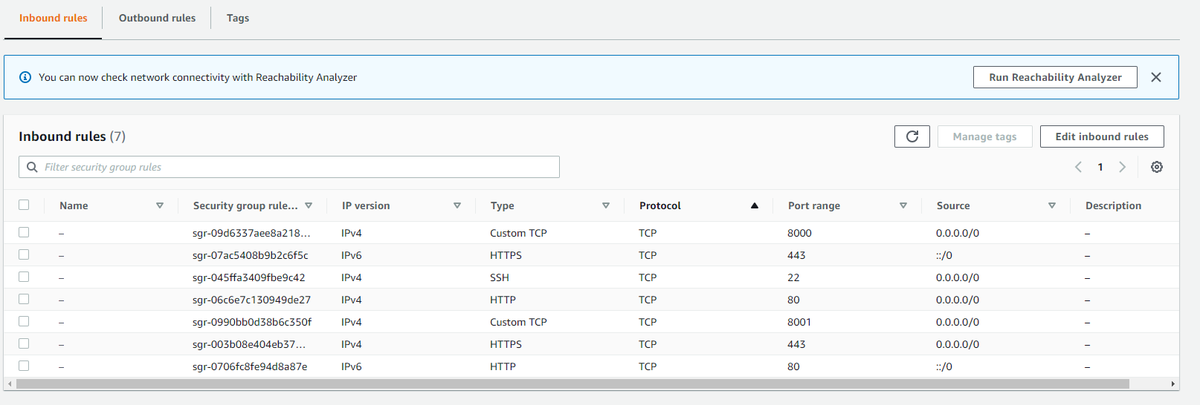
Go to AWS Console Home -> Search 'ec2' -> EC2 (Virtual Servers in the Cloud) -> Security Groups -> Create security group -> Inbound rules
 -> Outbound rules (this is for git-cloning codes from GitHub later)
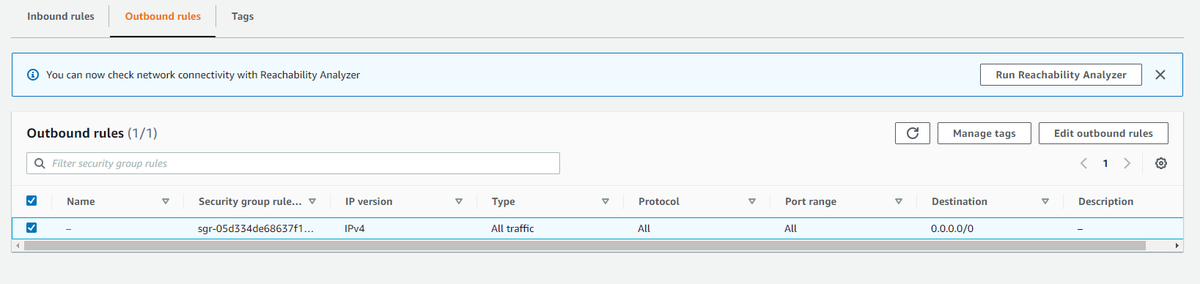
Make sure the security group inbound rules and outbound rules consistent with future firewall settings. (In fact we don't need to enable ufw inside EC2 machine, AWS provides firewall/Security groups which are already sufficient.)
Back to EC2 Dashboard -> Launch instance -> Key pair name -> Select a key pair (Create one if no key pairs available yet) -> Firewall(security groups) -> Select the security group just created -> Launch instance
SSH into EC2 VM
ssh ubuntu@52.199.20.253
Add a new user and delete default user(ubuntu) (Optional)
sudo adduser user0
password: happypass
sudo adduser user0 sudo
cd /home/user0 # if not working: su user0
sudo mkdir .ssh
cd .ssh
sudo touch authorized_keys
cat /home/ubuntu/.ssh/authorized_keys
# copy the content
sudo nano authorized_keys
# paste here
ctrl + x,  y,  enter
# 'sudo cp /home/ubuntu/.ssh/authorized_keys .ssh/authorized_keys' DOES NOT WORK (reason unknown)
exit
ssh user0@52.199.20.253
sudo visudo
# Add user0 ALL = NOPASSWD : ALL
sudo deluser --remove-home ubuntu
Deploy Preparation
sudo apt-get update && sudo apt-get upgrade

# Hostname change (Optional)
hostname
sudo hostnamectl set-hostname [hostname]
sudo nano /etc/hosts

ssh-keygen -t ecdsa -b 521
cat ~/.ssh/id_ecdsa.pub
# Copy the content and Add it to your GitHub SSH and GPG keys
git clone git@github.com:username/repo_name.git

sudo apt-get install -y nginx
Serving multiple Django apps with Gunicorn and Nginx
YouTube Reference
Suppose we have two django projects located under /home/user0 directory, we have created & activated a virtual environment and pip installed gunicorn for each inside the project folder.
sudo nano /etc/systemd/system/django_one.socket
[Unit]
 Description=django_one socket
[Socket]
 ListenStream=/run/django_one.sock
[Install]
 WantedBy=sockets.target
sudo nano /etc/systemd/system/django_one.service
[Unit]
Description=django_one daemon
Requires=django_one.socket
After=network.target
[Service]
User=root
Group=root
WorkingDirectory=/home/user0/django_one
ExecStart=/home/user0/django_one/venv/bin/gunicorn \
          --access-logfile - \
          --workers 3 \
          --bind unix:/run/django_one.sock \
          django_one.wsgi:application
[Install]
WantedBy=multi-user.target
sudo systemctl start django_one.socket
sudo systemctl start django_one.service
sudo systemctl enable django_one.socket
sudo systemctl enable django_one.service
sudo systemctl status django_one
We are going to do the same with django_two project
sudo nano /etc/systemd/system/django_two.socket
[Unit]
 Description=django_two socket
[Socket]
 ListenStream=/run/django_two.sock
[Install]
 WantedBy=sockets.target
sudo nano /etc/systemd/system/django_two.service
[Unit]
Description=django_two daemon
Requires=django_two.socket
After=network.target
[Service]
User=root
Group=root
WorkingDirectory=/home/user0/django_two
ExecStart=/home/user0/django_two/venv/bin/gunicorn \
          --access-logfile - \
          --workers 3 \
          --bind unix:/run/django_two.sock \
          django_two.wsgi:application
[Install]
WantedBy=multi-user.target
sudo systemctl start django_two.socket
sudo systemctl start django_two.service
sudo systemctl enable django_two.socket
sudo systemctl enable django_two.service
sudo systemctl status django_two
Nginx set up
sudo nano /etc/nginx/nginx.conf
user root;
worker_processes auto;
error_log /var/log/nginx/error.log;
pid /run/nginx.pid;
# Load dynamic modules. See /usr/share/nginx/README.dynamic.
include /usr/share/nginx/modules/*.conf;
events {
    worker_connections 1024;
}
http {
    log_format  main  '$remote_addr - $remote_user [$time_local] "$request" '
                      '$status $body_bytes_sent "$http_referer" '
                      '"$http_user_agent" "$http_x_forwarded_for"';
    access_log  /var/log/nginx/access.log  main;
    sendfile            on;
        tcp_nopush          on;
        tcp_nodelay         on;
        keepalive_timeout   65;
        types_hash_max_size 2048;
    include             /etc/nginx/mime.types;
        default_type        application/octet-stream;

    # Load modular configuration files from the /etc/nginx/conf.d directory.
    # See http://nginx.org/en/docs/ngx_core_module.html#include for more information.

    include /etc/nginx/conf.d/*.conf;

    server {
        listen 80;
        server_name blog.peng.codes;

        location = /favicon.ico {
            access_log off;
            log_not_found off;
            }
        location /static {
            root /home/user0/django_one;
        }

        location / {
            proxy_set_header Host $http_host;
            proxy_set_header X-Real-IP $remote_addr;
            proxy_set_header X-Forwarder-For $proxy_add_x_forwarded_for;
            proxy_set_header X-Forwarded-Proto $scheme;
            proxy_pass http://unix:/run/django_one.sock;
            }
        }
    server {
        listen 80;
        server_name test.peng.codes;
        location = /favicon.ico {
            access_log off;
            log_not_found off;
        }
        location /static {
                root /home/user0/django_two;

                    }
        location / {
                    #include proxy_params;
                    proxy_set_header Host $http_host;
                    proxy_set_header X-Real-IP $remote_addr;
                    proxy_set_header X-Forwarder-For $proxy_add_x_forwarded_for;
                    proxy_set_header X-Forwarded-Proto $scheme;
                    proxy_pass http://unix:/run/django_two.sock;
                }
        }

    server {
            listen       80 default_server;
            listen       [::]:80 default_server;
            server_name  _;
            root         /usr/share/nginx/html;

            # Load configuration files for the default server block.
            include /etc/nginx/default.d/*.conf;
            location / {
                    }
            error_page 404 /404.html;
            location = /40x.html {
                    }
            error_page 500 502 503 504 /50x.html;
            location = /50x.html {
                    }
        }

    # Settings for a TLS enabled server.
    # server {
    #         listen       443 ssl http2 default_server;
    #         listen       [::]:443 ssl http2 default_server;
    #         server_name  _;
    #         root         /usr/share/nginx/html;

    #         ssl_certificate "/etc/pki/nginx/server.crt";
    #         ssl_certificate_key "/etc/pki/nginx/private/server.key";
    #         ssl_session_cache shared:SSL:1m;
    #         ssl_session_timeout  10m;
    #         ssl_ciphers HIGH:!aNULL:!MD5;
    #         ssl_prefer_server_ciphers on;

    #         # Load configuration files for the default server block.
    #         include /etc/nginx/default.d/*.conf;

    #         location / {
    #         }

    #         error_page 404 /404.html;
    #             location = /40x.html {
    #         }

    #         error_page 500 502 503 504 /50x.html;
    #             location = /50x.html {
    #         }
    #     }
}
systemctl restart nginx
systemctl status nginx.service
Share this post
Related Posts
Basic tmux Commands for Terminal Sessions
Learn the basic tmux commands to create, list, detach, reattach, rename, and remove terminal sessions.
Xesim Guide for Chinese iPhones
Using Xesim to Manage Multiple Numbers or Data Plans from Different Countries on the Second SIM Card of a Chinese iPhone 17
The Evolution of Infrastructure Management
The evolution of infrastructure management goes from clicking in the cloud console to AI-assisted operations.
Linux Commands Cheat Sheet
Linux commands cheat sheet: comprehensive reference covering basic commands, man pages, and help options.